
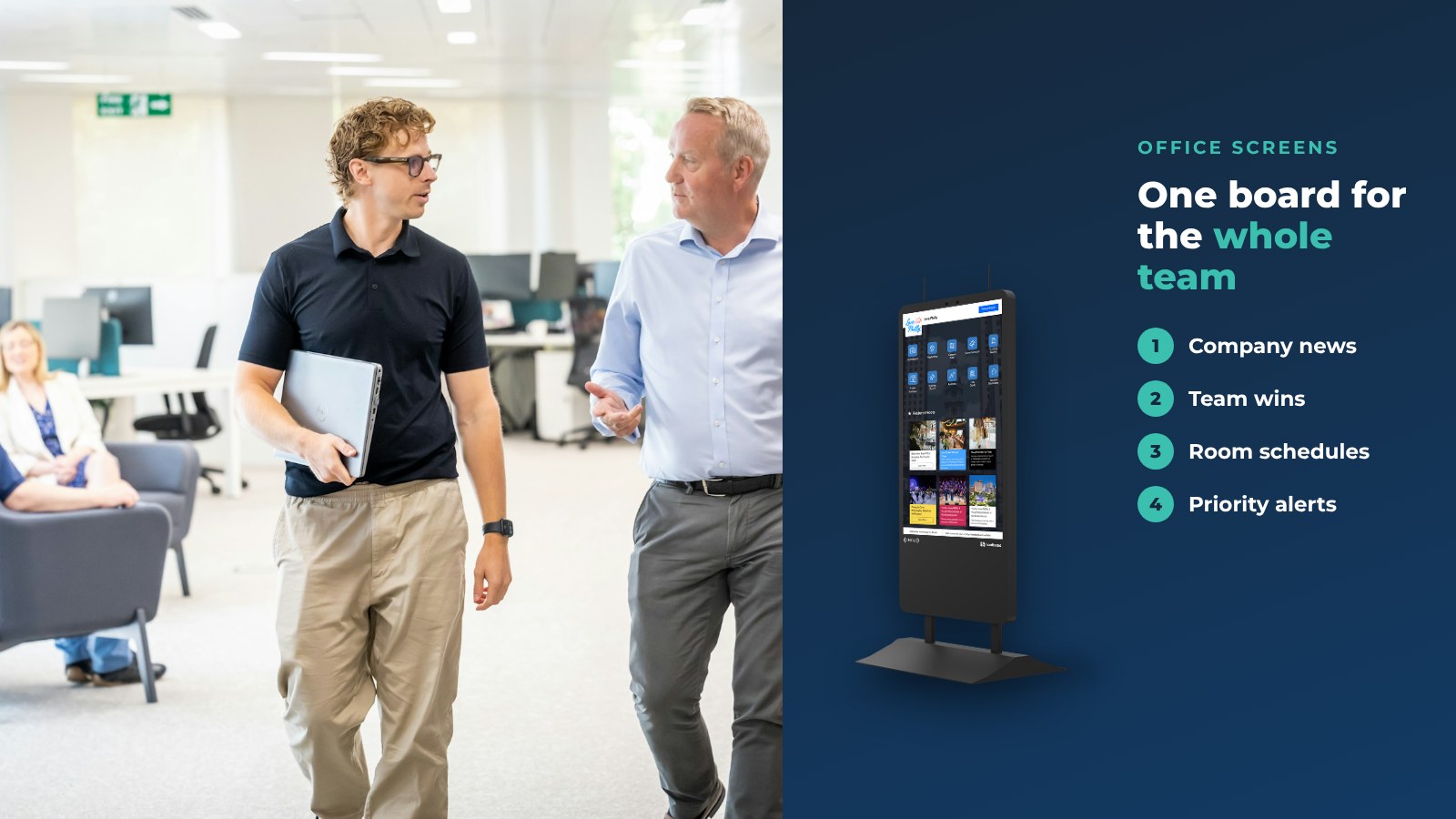
Office screens can do more than show a lobby welcome. Used as an employee communication board, they keep teams informed, recognize good work and help people find what they need. Here are nine ideas, then a short guide to rolling it out.
HootBoard is a kiosk operating system and content platform. You post once, and it shows on your office screens and on employees' phones. If you also want a simple board for ideas and feedback, read our guide to a digital bulletin board for employee engagement.
1. Display company goals and mission
People work better when they know the goals. Put your mission and this quarter's goals where everyone passes: break rooms, lobbies and the hallway by the elevators.
- Keep it short. One goal per screen, in plain words.
- Show progress. Update the board as you hit milestones, so it stays real.
- Use visuals. A clear graphic beats a paragraph.
2. Recognize employee contributions
People feel valued when their work is seen. Post wins as they happen: a closed deal, a shipped project, a 10-year anniversary.

- Add a photo and a line. A quote from a colleague or manager makes it personal.
- Let staff nominate. Team members can post to the board, and you approve each post with one click before it goes live.
3. Spread company news
Important news gets lost in email. A screen in a shared space is hard to miss.
- Post the short version. New hires, product launches and customer wins.
- Link to more. Add a QR code so people can open the full story on their phone.
4. Display sales figures and targets
Keep a sales team focused with live numbers on the wall.
- Show a live dashboard. If your team already uses a web dashboard, a custom kiosk web app can show it on the screen.
- Keep targets visible. A running total and a goal line drive friendly competition.
- Update on a schedule. Numbers that are a week old are worse than none.
5. Bring in social media and feeds
A feed brings in fresh content with no extra work.

- Show your company Instagram. Employees see what the outside world sees.
- Add an RSS feed. Show company blog posts or industry news.
- Invite employee content. Photos from team events and volunteer days build community.
6. Use screens for training videos
Processes change often. A short video on a screen near the work it explains is easy to find and easy to replay.
- Keep videos short. Two minutes, one task.
- Match the place to the topic. A safety video by the workshop door, IT tips by the help desk.
- Rotate monthly. A fresh video gets noticed.
7. Show meeting room availability
There never seems to be a free meeting room when you need one. A screen outside each room that shows today's schedule solves most of it.
- Connect your calendar. Microsoft 365 and Google Workspace calendars can show on the room screen.
- Show who and when. Staff can see at a glance whether the room is free.
8. Prepare for emergencies
When something goes wrong, people need clear instructions fast.
- Send priority alerts. An emergency notification can override whatever is playing, on every screen in your network at once.
- Pull in official alerts. Weather warnings from the National Weather Service can show up automatically.
- Add office-specific steps. Exits, assembly points and contacts for each site.
9. Promote internal branding
Your values and culture are easier to feel when they are visible.
- Show what you stand for. Mission, values and wins, in your colors.
- Mix in people. Faces and stories beat slogans.
- Be consistent. The same look on every screen builds pride.

Ready to try these ideas? Start your board and post your first update today.
Why use screens for employee communications
Screens in shared spaces reach people who never open the company newsletter. Our workplace communication kiosks are built for exactly this.
- Real-time updates. Post once and every screen updates, so the message reaches people when it matters.
- Better engagement. Photos, video and live content get more attention than a paper notice.
- Less waste. No printing, no pinning and no taking old notices down.
- Fewer manual steps. One post replaces a round of emails and flyers.
How to set up an employee communication board
You can be live in under 30 minutes, with no IT team.
- Make a plan. Decide where screens go, who posts and what kinds of content you want.
- Choose the screen. Use a HootBoard kiosk from the HootBoard store, or run HootBoard kiosk software on any Android 7+ screen or PC you already have.
- Add content. Start with goals, news and recognition. Add feeds and calendars next.
- Review monthly. Use per-screen analytics to see time on screen and which hoots and apps people open, then adjust.

Challenges to plan for
Most problems with office screens come from planning, not technology. Plan for these four.
- Getting started. Start on the always-free Launch plan with one screen, then add more as it proves its value. You can compare plans when you grow.
- Setup time. The software goes live in under 30 minutes. Plan your wall mounts and power outlets in advance.
- Control. Decide who can post and who approves. Every post can be reviewed before it goes live.
- Fresh content. Screens that never change get ignored. Start from flyer templates, and give one person a weekly slot to refresh the board.

Tips for effective employee screens
- Keep it simple. Short messages, large text and one idea per screen.
- Stay relevant. Company news, events and team wins, not outside distractions.
- Time your posts. Post the lunch menu in the morning and the all-hands reminder on Monday.
- Review monthly. Check the numbers, drop what was ignored and keep what worked.
A communication board works best when it is useful every day. Start small, keep it fresh and let your team add to it. Book a demo and we will show you how it works in your office.
FAQ
What is an employee communication board?
It is a screen, or a set of screens, that shows company news, goals, recognition and schedules to staff. With HootBoard, the same content also shows on employees' phones.
What should I put on it first?
Start with three things: company news, a recognition post and your meeting room schedule. They are quick to set up and get noticed.
Can employees post to the board?
Yes. Team members can submit posts, and you approve each one with a single click before it appears.
Do I need IT to set it up?
No. HootBoard goes live in under 30 minutes and does not need an IT team.
Can I show alerts to everyone at once?
Yes. Priority alerts can override the content on every screen in your network.