
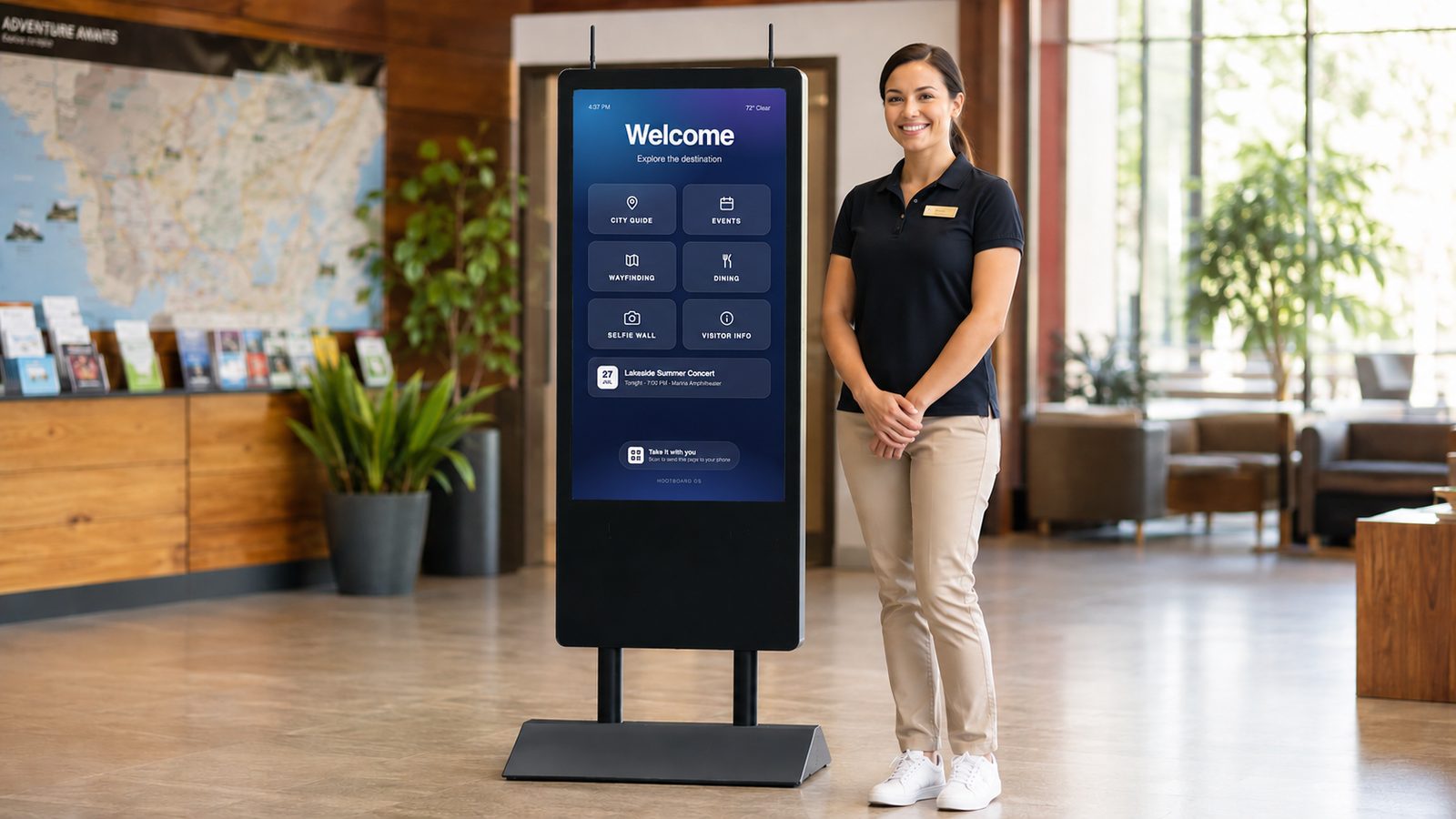
No IT department required. No site visits. Here's how day-to-day kiosk care works, right on the screen or from anywhere in the world.
A kiosk should be something you set up and enjoy, not something you babysit. That's been our philosophy from day one, and it shapes everything about how you care for a HootBoard kiosk:
- Anything routine is doable right on the kiosk, by anyone, in seconds.
- Anything remote is doable from your desk, without a site visit.
Here's what that looks like.
Getting in: simple for your team, a dead end for anyone else
Kiosk management has always been straightforward, and we keep making it even smoother. Today, everything happens right on the touchscreen, with security built in:
- Tap into the admin entry on the kiosk and enter a simple access code.
- Confirm with a one-time verification code generated for that specific screen from your HootBoard web dashboard.
- You're in.
That second step is the clever part. Only someone with access to your HootBoard admin account can generate the verification code, and it's tied to that individual screen. So the person standing at the kiosk and your HootBoard account have to agree: effortless for your team, a locked door for anyone else. No keys to carry, no passwords to remember, nothing extra to plug in.

The on-screen Admin Panel: everything you need, one tap deep
Once you're in, you land on a clean, touch-friendly menu. No terminal windows, no settings buried five levels deep. Just big, clearly labeled tiles:
- Info: See the app version, board, and screen details at a glance. Perfect for support calls: everything they'll ask for is on one screen.
- Update: Updates arrive over the air and install themselves automatically. No downloads, no USB sticks, nothing to remember. This tile is simply there if you ever want to see the current version or grab the latest update on the spot.
- Network: Connect to WiFi and manage saved networks, right from the touchscreen.
- Audio: Speakers, microphone, and volume.
- Display: Orientation and touch calibration.
- Power: Restart or shut down the kiosk cleanly.
- Network Tools: Run a speed test, check whether a captive portal is blocking access, and see how much data the kiosk is using. (Yes, your front-desk person can now diagnose “the internet feels slow” without calling anyone.)
- Advanced: Clear cached media, or reset the kiosk when it's moving to a new home.
The pattern here: simple things are one tap, and even the “advanced” things are plain-language buttons with clear descriptions. A new team member can handle 95% of kiosk care on day one.

Fleet Management: your whole kiosk network, from your desk
The on-screen panel is perfect when you're standing next to the kiosk. But what if your kiosks are across town, or across the country?
That's what our new Fleet Management app is for. It's a web dashboard where you can see and care for every kiosk you own, remotely:
- Live fleet dashboard: Every kiosk, its online/offline status, and which ones need attention, on one screen.
- See what's on screen, in real time: View exactly what a kiosk is displaying right now, without leaving your chair. “Is the screen frozen or is it just quiet?” is now a ten-second question.
- One-click remote fixes: Reboot the kiosk, relaunch the app, clear the cache, or wake a sleeping display. The everyday fixes that used to require walking over to the kiosk are now buttons.
- Health at a glance: Internet speed, disk space, software version, uptime, and more for every device, so you can spot a kiosk trending toward trouble before visitors ever notice.
- Offline alerts: Opt in to email alerts when a kiosk goes offline, with a threshold you choose. Find out from us, not from a visitor complaint.
- Activity log: Every remote action is recorded, so you always know who did what, and when.

One thing to know: since Fleet Management talks to your kiosks over the internet, each kiosk needs an active internet connection to be viewed and managed remotely. (If a kiosk does drop offline, that's exactly what the offline alerts are for. You'll know right away, and the moment it reconnects it's back under remote care.)
For teams managing more than a couple of screens, this changes the math entirely. A kiosk in another building, or another state, is now as easy to care for as the one in your lobby.

Fleet Management is invite-only (for now)
We're rolling Fleet Management out gradually to make sure every team gets a great onboarding experience. If you manage multiple HootBoard kiosks and want in, we'd love to hear from you. Email support@hootboard.com and we'll get you set up.
The bottom line
Whether it's a volunteer at the front desk restarting a screen, or an operations manager rebooting a kiosk three time zones away, kiosk care shouldn't need an IT ticket. With HootBoard, it never does:
- At the kiosk: tap in securely, and everything from WiFi to diagnostics is a big friendly button, and updates handle themselves.
- From anywhere: see every screen live, fix the common stuff with one click, and get alerted before anyone else notices.
Simple things are instant. Advanced things are easy. And your team can run it all without ever opening a support ticket.
Want Fleet Management for your kiosks? Reach out to support@hootboard.com and we'll take care of the rest.