
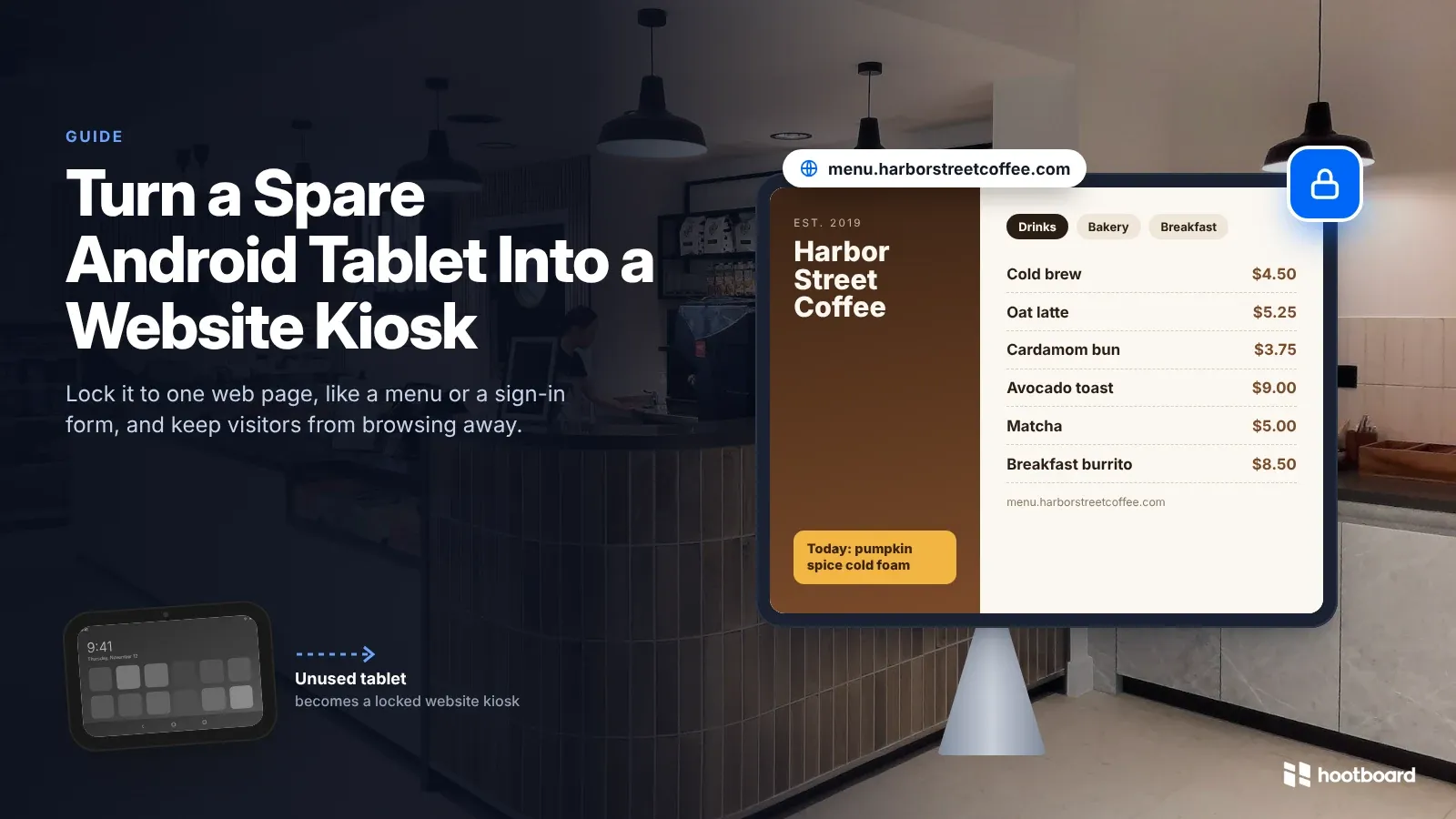
Most offices, shops and front desks have one: an Android tablet in a drawer that nobody uses anymore. It still has a good screen, a touch display and Wi-Fi. That's everything a single-purpose kiosk needs.
The easiest job to give it is showing one website, full screen, all day. Think of a menu, a visitor sign-in form or a booking page. This guide covers what to check first, how to get your website ready, and how to lock the tablet so visitors can't browse away.
Good jobs for a spare tablet
If the job lives on a single web page, a spare tablet can do it:

- Restaurant or cafe menu on the counter or at the entrance
- Visitor or guest sign-in form at a front desk
- Appointment or class booking page in a salon, gym or clinic waiting room
- Room or event schedule outside a meeting room or hall
- Customer feedback survey by the exit
- Product catalog or price list in a showroom
- Exhibit information page in a museum or gallery
- Events calendar in a library, campus lounge or community center
Is your tablet up to it?
Older tablets often work fine for one website. Check these five things before you start:

- Android 7.0 or later. Look under Settings > About tablet.
- A browser that can show your site. The kiosk shows your site through Android System WebView. On a very old tablet, open your site in the built-in browser first to check that it looks right.
- A battery and charger that still work. The screen stays on all day, so the tablet needs to stay plugged in. A swollen battery is a reason to retire the tablet, not reuse it.
- Strong Wi-Fi where it will sit. A website kiosk needs the internet.
- A stand, mount or enclosure. A locking enclosure keeps the tablet from walking away and hides the power button.
Why a full-screen browser isn't enough
Opening Chrome and hiding the address bar looks like a kiosk, until the first curious visitor shows up. A regular browser still lets people:
- Open a new tab and go anywhere on the web
- Swipe up to the home screen or open recent apps
- Pull down the notification shade and reach Settings
- Tap a link that leaves your site and never comes back
And after a restart or power cut, the tablet opens to its home screen instead of your page.
A real website kiosk uses Android's Lock Task Mode, the same lockdown used for business kiosks. It pins the device to your site, blocks the system buttons, and reopens your page every time the tablet boots. Our Android kiosk mode guide compares the options in detail.
Get your website ready
The lockdown keeps visitors on your site, so your site has to work on its own with nobody around to fix it. Check these before you lock:

- Keep it on one domain. The kiosk allows the address you lock to and anything under it. Lock it to
example.comand visitors can also reachwww.example.comandmenu.example.com. Lock it tomenu.example.comand they can't reach the rest of the site. Links to other domains are blocked, and that includes sign-in pages hosted somewhere else. - Avoid a login if you can. A public page is the most reliable choice. If you need a login, make sure it stays on your own domain.
- Skip file downloads. Downloads are blocked, so put the content on the page itself, not in a PDF link.
- Don't count on the camera or microphone. The kiosk turns down a site's requests for them.
- Design for touch. Use large buttons, readable text, and no hover menus.
- Bring visitors back to the start. If your page has several steps, like a sign-in form, add a timeout or a "Done" button that returns to the first screen.
How to lock the tablet to your website
The setup takes about 30 minutes. You'll need the tablet, a USB cable that carries data, and a Mac, Windows or Linux computer.

- Factory reset the tablet. Android only lets a kiosk app take full control of a device with no accounts on it. Go through the setup wizard and skip every sign-in step.
- Turn on USB debugging. Go to Settings > About tablet and tap Build number seven times. Then open Settings > System > Developer options and turn on USB debugging.
- Install ADB on your computer. It comes in Google's Platform Tools download. On Windows, you'll also need Git Bash or WSL.
- Connect the tablet and run the setup command. Accept the "Allow USB debugging?" prompt on the tablet, then run
curl -sL https://dpc.hootboard.com/install.sh | bashin a terminal. This installs HootBoard Android Kiosk Lockdown and makes it the device owner. When it asks "Should HootBoard take over control of this device?", answer Y. If the script warns that it couldn't set the device owner, reset the tablet and run it again. - Choose "Lock a custom app or website." You'll see it on the Welcome to HootBoard screen.
- Type your full web address, such as
https://example.com/menu, and tap Lock Now. - Set your admin PIN right away. Tap the top-left corner of the screen 7 times in a row, within 3 seconds, to open the admin panel. Then set a 6-digit PIN before the tablet goes on display. Write the PIN down. Without it, the only way back in is a factory reset.
That's it. The tablet now shows your site full screen, keeps the screen on, and opens your page every time it boots.
The setup command in step 4 is the whole installation. There's nothing else to download onto the tablet.
What happens when the Wi-Fi drops
The lockdown stays on, so visitors still can't get out. Your page needs the internet to load, though. The kiosk keeps retrying and reloads the page on its own once the connection comes back, so nobody has to walk over and tap refresh.
If the tablet loses power, it boots straight back into your site when power returns.
Changing the website or taking the tablet back
Tap the top-left corner 7 times in a row to open the admin panel, then enter your PIN. Under App & Browser Lock, you can:
- Type a new web address to point the kiosk at a different page
- Disable Lockdown Mode to get the normal Android screen back while the app stays installed
- Remove Lockdown & Unenroll to release the tablet completely, so you can uninstall the app and use the tablet as usual again
When one web page isn't enough
Some kiosks grow past a single page. You might want events, a community board and directions on the same screen. In that case, choose Interactive Kiosk during setup instead. It runs HootBoard's kiosk app, with boards, event calendars, wayfinding and local guides. You can start on the Launch plan and see pricing when you need more.
Frequently asked questions
Can I use any website?
Any site that works in a normal mobile browser and stays on one domain. Sites that sign you in through a different domain won't work.
Can visitors get to other websites?
No. Links that leave your domain are blocked, and there's no address bar, tab bar or home button.
Does it need an internet connection?
Yes, for the website. The lockdown itself runs on the tablet, and the page reloads by itself once the connection returns.
Can I lock the tablet to an app instead?
Yes. Pick an installed app instead of typing a web address. Our Android kiosk mode guide covers that setup.
Will it work on my old tablet?
If it runs Android 7.0 or later and can show your site in its browser, it should work.
Does this cost anything?
No. Android Kiosk Lockdown is free to use, with no account and no per-device fee.
What about an Android TV, a PC or a NUC?
Website lock is for touch screen Android devices. Android TVs can run HootBoard Digital Signage. For a PC or NUC, see HootBoard Kiosk OS.
Put that tablet to work
Pick the page, check your site against the list above, and set aside half an hour. For everything Kiosk Lockdown does, see the Android kiosk software page.
Ready? Plug in a factory-reset tablet with USB debugging on, and run:
curl -sL https://dpc.hootboard.com/install.sh | bash