
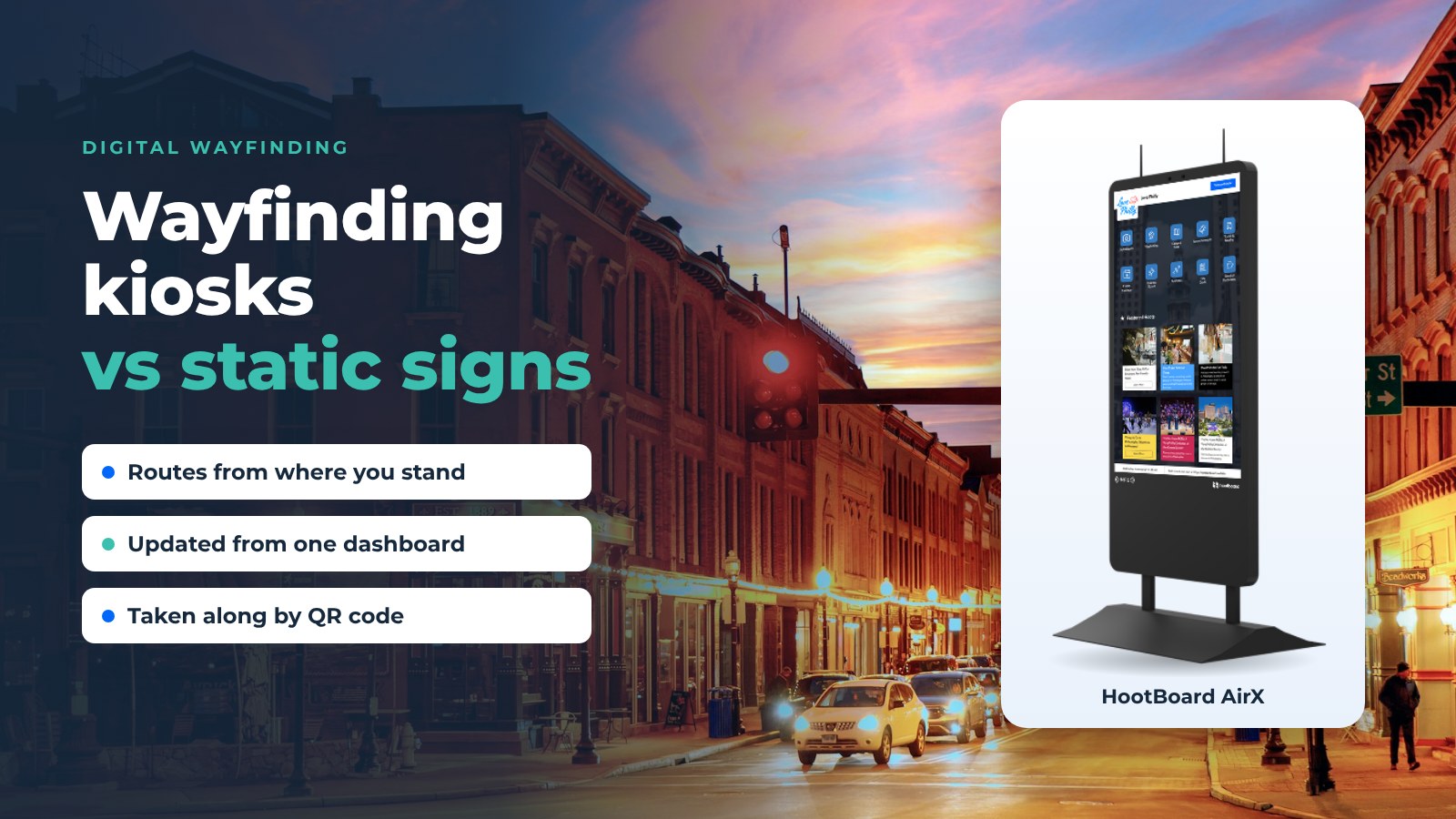
Static signs are fixed. The places they point to are not. Rooms get renamed, exhibits move, a street closes for a festival, a new wing opens. Every change leaves a sign that is wrong until someone reprints it.
Digital wayfinding kiosks fix that. A kiosk shows the route from where the visitor is standing, updates from a dashboard, and sends the route to the visitor's phone. HootBoard's Wayfinding app does this across one floor or many, with accessible routes and evacuation maps. It runs on the same kiosks that show your City Guide, Events and Transit apps.
This guide compares wayfinding kiosks vs static signs, shows where interactive wayfinding earns its place, and walks through choosing and running a system. If you would rather see it on your own floor plan, book a wayfinding demo.
What digital wayfinding is and how it works
Wayfinding is everything that gets a person from where they are to where they want to go, with as little confusion as possible. Planners have always used signs, landmarks, lighting and maps for this. Digital wayfinding adds screens that can change.

An interactive wayfinding system usually has four parts:
- A map. A floor plan or site map with every destination marked. HootBoard imports CAD and IMDF files, so you can start from the drawings you already have. Our post on indoor wayfinding technology covers the basics.
- A kiosk. A touchscreen at the entrance, in the lobby or at the junction where people get lost. Visitors search for a place or browse a directory, and the route starts from the kiosk.
- A handoff. A QR code sends the route to the visitor's phone as a web page. There is no app to install.
- A dashboard. Staff update places, routes and closures from a browser. Every kiosk picks up the change.
Here is a short look at HootBoard wayfinding on a campus.
Wayfinding kiosks vs static signs
Static wayfinding still does most of the work in most places: directional signs, printed maps on the wall, a lobby directory board and a staffed desk. Each one has a weak spot that a kiosk covers.

Here is how the two compare, point by point:
- When something moves. A static sign needs a reprint. A kiosk gets edited in the dashboard.
- Starting point. On a printed map, the visitor has to find "You are here." On a kiosk, the route starts at the kiosk.
- Accessible routes. Often missing from static signs. A kiosk offers an ADA route option.
- Several floors. Printed maps show one floor at a time. A kiosk gives a floor-by-floor route.
- Taking it along. With a sign, people snap a photo. With a kiosk, a QR code sends the route to the phone.
- Languages. Signs carry one, maybe two. A kiosk can show multi-language pages.
- Events and closures. A sign gets a taped-up notice. A kiosk shows the events feed and alerts.
- What you learn. A sign tells you nothing. A kiosk reports top searches, QR scans and time on screen.
- When nobody is using it. A sign is a blank wall. A kiosk plays a signage playlist.
Static signs are not going away. Door numbers, exit signs and overhead directionals still need to be there. The kiosk carries everything that changes, so your printed signs only need to cover the things that do not.
Where digital wayfinding earns its place
Three things decide whether a place needs a wayfinding kiosk: how big the space is, how often the layout or schedule changes, and how many first-time visitors come through.

- Downtowns and visitor centers. Visitors park once and walk. A kiosk at the garage, the visitor center and the main square puts attractions, dining and restrooms on one map and sends the walking route to the phone. A tourism kiosk can do this for a whole destination. See more ways to use information kiosks in a city.
- Campuses. Prospective families, game-day crowds and new students all hunt for the same buildings. Multi-floor routes, accessible paths and the shuttle schedule can sit on one campus kiosk.
- Convention and event centers. Rooms change by the hour. The kiosk shows the agenda, routes to the session room and lists the city's evening options.
- Transit hubs and airports. High volume and high stress. Routes to platforms and gates sit next to live arrivals from GTFS realtime.
- Museums and entertainment venues. Exhibits rotate. The kiosk routes to the current exhibit and to the nearest restaurant after the show.
- Hospitals and public buildings. Visitors are often anxious and in a hurry. Accessible routes and evacuation maps matter most here. A smart city kiosk covers city halls and civic campuses.
- Workplaces. Lobby directories, room finding and visitor check-in. Read more about information kiosks in the workplace.
What a wayfinding kiosk does that a sign cannot
Together, these points are the case for an interactive part in any wayfinding plan.

It moves people, not just information
A visitor who knows what is nearby, and how to get there, goes to more places. For a downtown, that means more foot traffic into local businesses. For a campus, it means fewer late arrivals and fewer calls to the front desk. Pair the map with interactive signage content like events and specials, and a direction turns into a plan.
It stays right
Real-time updates are the whole point. A road closure, a clinic that moved, a canceled session: edit it once and every screen is correct. Nobody walks to a locked door.
It serves everyone
Accessible routes, several languages, large touch targets and a phone handoff for people who would rather not touch a public screen.
It shows you what people look for
HootBoard analytics show top searches, QR scans, time on screen and which apps people open, kiosk by kiosk. If one destination tops the search list every week, make it easier to find on the map and on the signs around it.
It works for residents too
Tourists need wayfinding most, but locals use the same kiosk to find tonight's event or the farmers market. The screen earns its place all year, not just in July.
Why a kiosk, not just an app
Everyone has a phone. So why put a screen on the wall?

- Nothing to install. Most visitors will not download a venue app. A kiosk asks nothing of them, and the QR handoff still gives them the phone version as a web page.
- It sits where the confusion is. People stop at the junction, the lobby and the garage exit. A big screen in that spot gets used. A link in a confirmation email does not.
- It works when idle. Between uses, the kiosk plays your signage playlist: events, alerts and partner content. Signage and wayfinding share one screen.
- It answers more than "where". The AI Concierge, City Guide and Events apps sit next to the map. A visitor can find the ballroom and a coffee shop on the way.
- It keeps working offline. HootBoard kiosks cache content and keep running when the network drops, then sync when it comes back.
Hardware for wayfinding kiosks
The right hardware follows the spot. Every HootBoard kiosk ships with HootBoard Kiosk OS pre-loaded.

- AirX. Indoor portrait touchscreen for lobbies, visitor centers and museums. It ships with a floor stand and wall brackets.
- Glide. Indoor floor-standing kiosk with a tall, clean profile.
- Glide XT. Heavy-duty indoor kiosk for transit halls, malls and busy campus buildings.
- Versi Floor Stand and Versi Wall Mount. Outdoor kiosks with a bright, weather-sealed screen for downtown streets, parks, transit plazas and building exteriors.
- Your own screen. Any Android 7+ touchscreen or tablet runs the HootBoard app with built-in kiosk lockdown. Any x86 PC or all-in-one can boot HootBoard Kiosk OS from USB. This works well for a pilot or for screens you already own.
Current models, specs, government pricing and volume pricing are on the store. See indoor and outdoor kiosks on the HootBoard store.
Best practices
A wayfinding kiosk is only as good as where it stands and what it shows. These habits keep it useful.
- Put the kiosk where people stop. Entrances, garage exits, elevator lobbies and the junction with the most wrong turns. Not against the far wall of a lobby.
- Map every place people ask about. Restrooms, elevators, water fountains, nursing rooms and bike parking matter as much as the big names. Ask your front desk what people ask for most.
- Offer the accessible route by default. Do not hide it behind a settings menu.
- Keep the screen current. Give one person the dashboard and connect feeds like your events calendar, GTFS and NWS alerts, so most content updates itself.
- Use the idle screen. A playlist of events, partner hoots and alerts keeps the kiosk useful between searches.
- Hand off every result. Make sure the QR code is on the route page and big enough to scan from standing height.
- Plan for the network. Use a wired connection where you can. HootBoard caches content for when you cannot.
- Clean the glass. A smudged touchscreen looks broken. A daily wipe with a microfiber cloth is enough.
Our post on the features that make the best wayfinding software goes deeper on the software side.
How to choose a wayfinding system
Work through these questions with your facilities, marketing and IT teams in the same room.

- How many spaces, and how many floors? One lobby or a whole district? One floor or a tower? Multi-floor and multi-building routes are a must for campuses and hospitals.
- Indoor, outdoor or both? This decides the hardware. Outdoor kiosks need a bright screen and weather sealing.
- What drawings do you have? CAD or IMDF files are the easiest start. If you only have a PDF floor plan, ask how the map gets built.
- Who updates it? If the honest answer is "nobody technical", you need a no-code dashboard and feeds that update themselves.
- Does it need to do more than wayfinding? Most do. Events, a directory, alerts, a visitor guide and signage on the same screen save you a second system.
- What will you measure? Agree on the numbers before you buy: kiosk sessions, QR scans, top searches and time on screen.
- What happens at 2:00 AM? Ask about 24/7 support, remote updates and what the kiosk does offline.
- Can you start small? Pilot on a tablet or spare screen with the HootBoard app, then order kiosks once you know where they go.
When you are ready to compare plans, see HootBoard pricing.
Common mistakes
- People do not know it is touchable. Show a clear "touch to start" screen and a short attract loop when idle.
- Bad placement and bad light. A kiosk in a dark corner, or facing a window with glare, does not get used.
- Mounted where you cannot move it. Use the stand or bracket that came with the kiosk, so you can move it after the first month of data.
- Stale content. This is the top reason kiosks get ignored. Connect feeds and give one person ownership.
- No handoff. A route the visitor cannot take along is half a route.
- No analytics. If you cannot see what people search for, you cannot improve the map.
- A shaky network and no offline mode. Wire it where possible and pick software that caches.
- Buying the screen first. Decide the locations and the content, then the hardware.
Paying for the network
Wayfinding kiosks can help cover their own running costs. Be clear about how.

- Featured partner listings. In HootBoard's City Guide, member businesses can be featured partners, and featured listings show first in the list. For a DMO or downtown association, that is a member benefit that helps fund the network.
- Optional screen advertising. Customers who want to sell ad slots can do it through AdSpace, an independent partner company that runs the ad side. It is optional and separate from wayfinding.
- Shared placement. Hotels, campuses and developers often host a kiosk and share the cost because it serves their visitors too.
Whatever you choose, keep the route search one tap away. A kiosk that is mostly ads stops being used for wayfinding, and then the ads stop working too.
Digital wayfinding is here to stay
Static signs will always mark the exits. Everything that changes belongs on a screen that can change with it. If you want to see your own floor plan or downtown in the HootBoard Wayfinding app, we will set it up on the call. Book a demo and see your floor plan in the Wayfinding app.
FAQ
What is digital wayfinding and how does it work?
Digital wayfinding uses touchscreens and phones to guide people through a space. A visitor picks a place on a kiosk, the route starts from the kiosk, and a QR code sends it to their phone. Staff update the map from a web dashboard.
What is a wayfinder in digital signage?
A wayfinder is any screen that helps someone find their way around an unfamiliar place. In practice, it is a touchscreen kiosk running wayfinding software, often next to a directory, events and alerts.
Are wayfinding kiosks better than static signs?
They do different jobs. Static signs mark fixed things like exits and room numbers. Kiosks carry everything that changes, give accessible and multi-floor routes, and hand the route to a phone. Most places use both and cut back the printed signs over time.
Do wayfinding kiosks work offline?
HootBoard kiosks cache content and keep running when the connection drops, then sync when it comes back.
Can we try digital wayfinding before buying a kiosk?
Yes. Start on the always-free Launch plan and run the HootBoard app on an Android screen or a PC. The Wayfinding app comes with paid plans.