
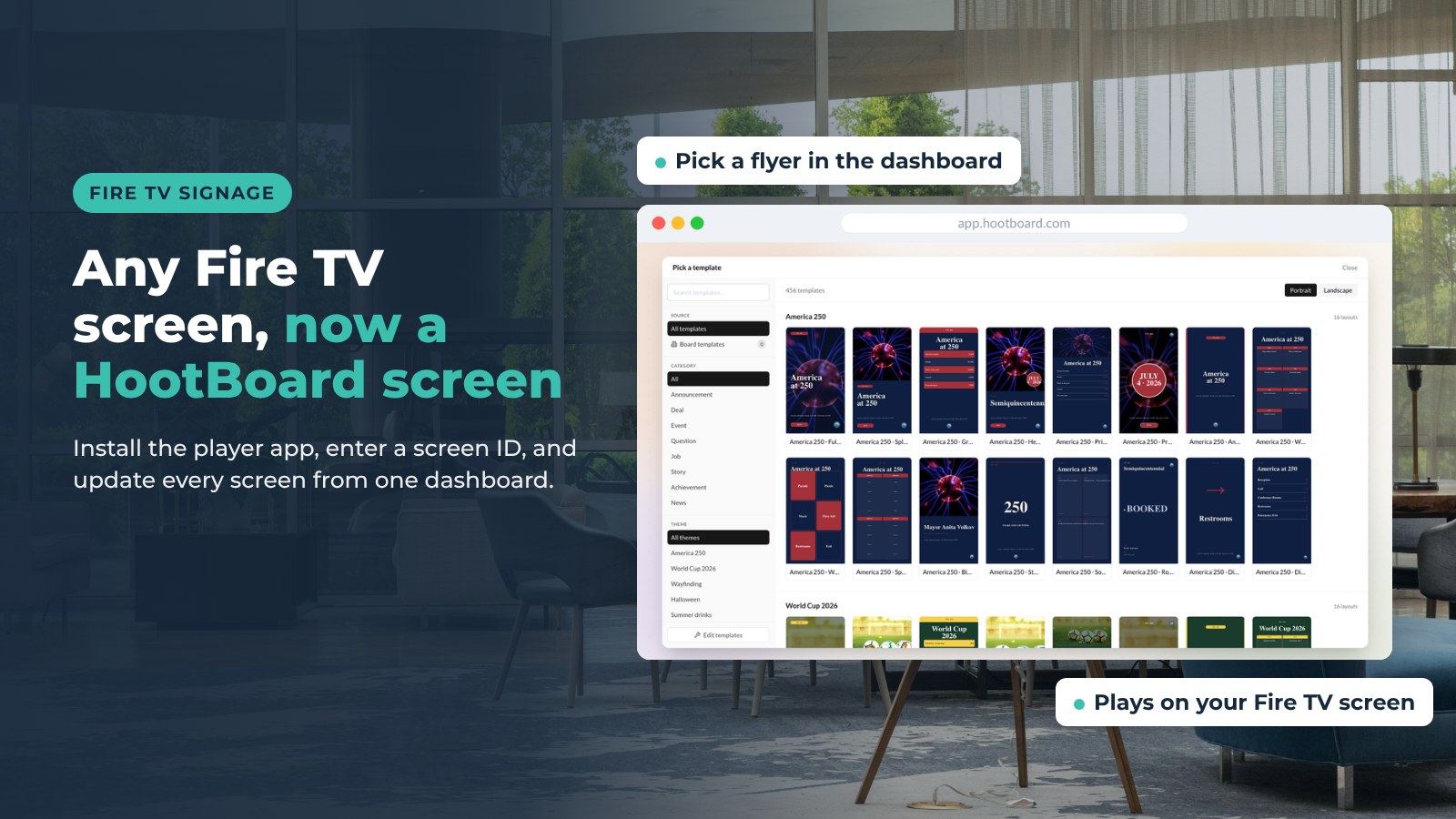
Do you have a TV in a lobby or hallway with an Amazon Fire TV device plugged in? You can turn it into a HootBoard signage screen. Install the HootBoard Digital Signage Player app, enter your screen ID, and your content starts playing. When you change the content in your dashboard, every screen updates.
This post covers what the Fire TV app does, who uses it, and how to set it up.
What the Fire TV app does
The HootBoard Digital Signage Player app runs on Amazon Fire TV devices. It pulls content from your HootBoard account and plays it full screen, on a loop.
- Many screens, one dashboard. Run your content on several Fire TV screens at once.
- Remote changes. Edit a playlist from your desk. The screens pick it up without anyone walking over to them.
- Same content as your kiosks. What you publish for a HootBoard kiosk can also play on a Fire TV screen.
Fire TV devices are small, easy to replace and sold in most electronics stores. That makes them a simple way to add signage screens in hallways, lobbies, student unions, waiting rooms and welcome areas.
Who uses Fire TV signage
Visitor centers and tourism boards use signage screens to promote events, local businesses and things to do this weekend. Campuses use them for announcements, dining hours and shuttle updates, often next to a campus kiosk. Cities use them in municipal buildings, libraries and community centers.
Workplaces and residential buildings use them too, for news and notices. Whatever the setting, you share announcements, events, jobs and more from one place.
Set up in four steps
You need a Fire TV device plugged into a screen, an internet connection and a HootBoard account. The step-by-step Fire TV setup guide has screenshots for each step.
- Install the app. Search for HootBoard Digital Signage Player in the Fire TV app store and install it.
- Create a screen. In your HootBoard dashboard, go to Screens, then Screen Setup, then Digital Signage. Copy the screen ID.
- Enter the screen ID. Open the app on the Fire TV, type in the ID and press submit. The screen's content appears, and the app remembers the ID.
- Turn on autoboot. The guide shows how to add a launch-on-boot app so the player starts by itself when the device powers on or wakes up.
Autoboot matters more than it sounds. Without it, a power outage leaves a blank TV until someone opens the app again. Test on one screen first, then roll it out.
What you can show
A Screen Playlist is the loop of content a signage screen plays. You build it once in the dashboard and assign it to as many screens as you like.

You can mix:
- Event cards and announcements
- Photos and short videos
- Live weather
- Content from your integrations, such as an events calendar or an RSS feed
Keep each item short. People walk past a signage screen. They glance at it; they do not stand and read it.
One post, every screen
HootBoard works on a post-once idea. You write a post (we call it a hoot) one time. It can then show on:
- Your HootBoard kiosks
- Signage screens, including Fire TV screens
- Visitors' phones, through a QR code or a web link

This means the Fire TV screen in the hallway and the touchscreen kiosk in the lobby always say the same thing. You update one place.
Fire TV screens are for playback. If you want visitors to touch the screen and explore a city guide, wayfinding or events, that is what a HootBoard kiosk is for. Many teams use both: touchscreens where people stop, signage screens where people pass by.
Other screens that work
Fire TV is one option. Any Android 7+ screen, tablet or media player can install the HootBoard app, and the built-in kiosk lockdown takes over the device. HootBoard kiosks ship with HootBoard Kiosk OS pre-loaded, so they are ready out of the box.
Tourism teams often pair signage screens with an interactive tourism kiosk at the visitor center, so travelers can browse, then send a page to their phone.
Ready to try it?
Build your first board on the always-free Launch plan, then follow the setup guide to put it on a Fire TV screen.
FAQ
Which Amazon devices work with the HootBoard player?
The app is built for Amazon Fire TV devices. The setup guide lists the Fire OS devices it supports.
Can I run several Fire TV screens from one account?
Yes. Each screen counts as one license, and you manage them all from the same dashboard. See the HootBoard plans for screen limits.
Can I change content without visiting the screen?
Yes. Edit the playlist in the dashboard and the screens update.
Does the app start by itself after a power outage?
Yes, if you set up autoboot as the setup guide describes. The app also remembers its screen ID.