
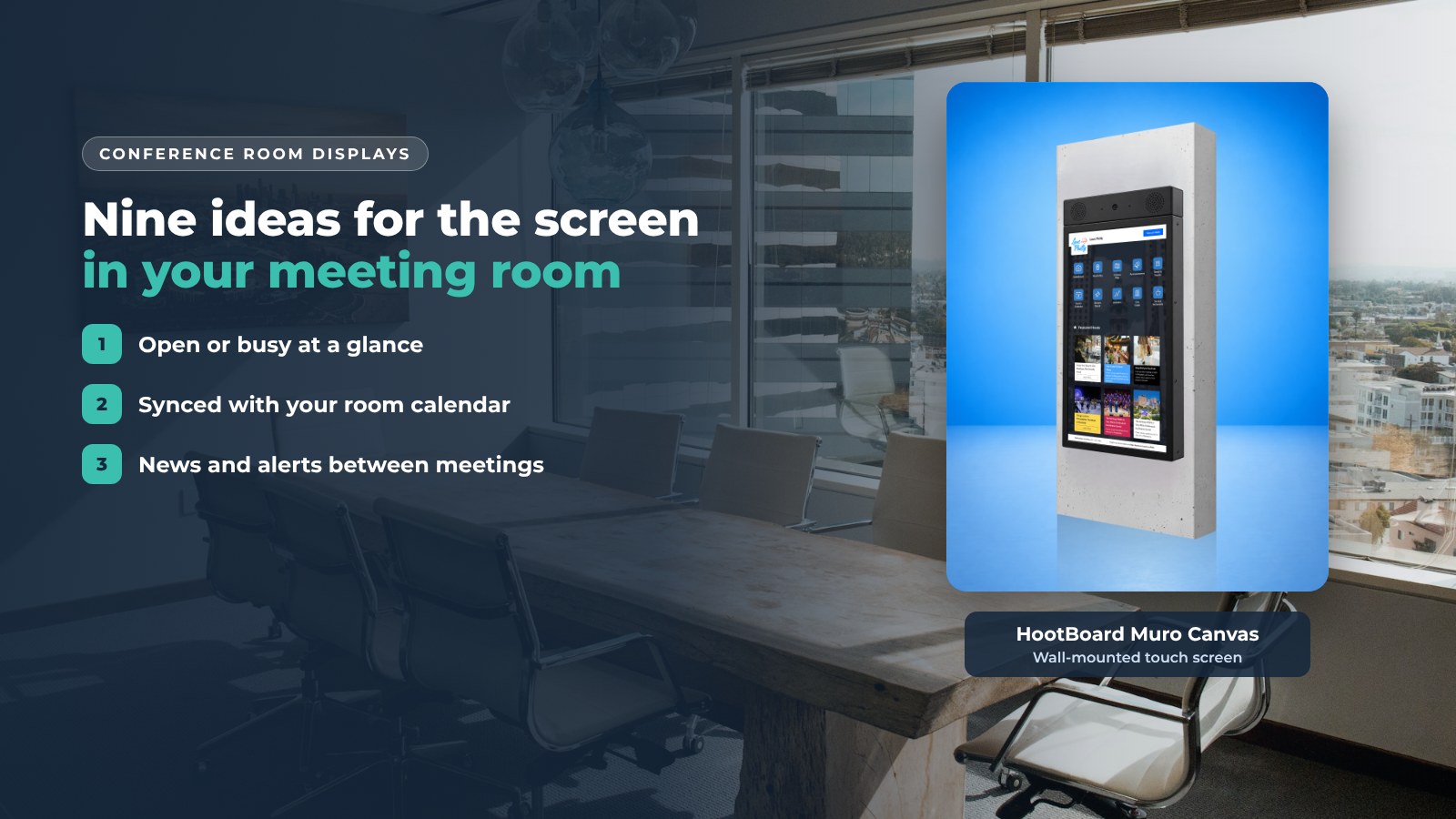
A conference room display is the screen at or inside a meeting room. Most of them show a logo and nothing else. They can do a lot more: tell people if the room is open, welcome a visitor, put the week's news in front of staff who never open the intranet, and take over with an alert when something goes wrong.
Below are nine ways offices, campuses and convention centers use conference room displays, then five steps to set one up. We build HootBoard, a kiosk and signage platform, so the setup section uses it as the example.
1. Room availability at the door
A small screen outside each meeting room shows the room name, whether it is open, what is on now and what is next.

- It reads the calendar you already use. HootBoard can show room calendars from Microsoft 365 and Google Workspace, so the door screen matches Outlook or Google Calendar.
- It ends the awkward knock. People see open or busy from the hallway.
- It cuts double bookings. The screen shows the same thing as the calendar, not a paper sign from last Monday.
2. Welcome screens for visitors
Put a welcome for today's visitors on the lobby screen, with the floor and room they need.
- It feels personal without extra work at the front desk.
- It points people to the right floor and room.
- Paired with a visitor registration form, the same screen becomes a check-in point.
3. Company news and wins
The hallway screen is the one channel everyone walks past.
- Post milestones, new hires, shout-outs and wins as hoots (posts on your board).
- Let staff submit their own. A manager approves with one click from the phone.
- The same post shows on every office screen and in the HootBoard mobile app.
4. Social feeds
Show your company's Instagram or an industry RSS feed when the screen is idle.
- Instagram and RSS are built-in integrations, so nobody re-posts by hand.
- The screen stays fresh between meetings.
- Staff see the same brand your customers see.
5. Find a free room from the lobby
A lobby kiosk can list every meeting room and its status on one screen. Someone who needs a quick room finds an open one in seconds, books it in Outlook or Google Calendar as usual, and every screen updates.
6. Live team metrics
A wall screen in the sales or support area can show today's numbers.
- Bring in a dashboard page as a custom kiosk web app.
- Rotate it with news and events on a playlist.
- Keep it to two or three numbers people can read from across the room.
7. Emergency alerts
When it matters, every screen should say the same thing at the same time.

- Priority-override alerts take over the whole screen network until you clear them.
- National Weather Service alerts can feed in on their own.
- Door screens, lobby kiosks and break-room signage all switch at once.
8. Training and learning
Rotate short tips, training dates and how-to videos.
- Playlists schedule content by time of day.
- A QR code on the screen lets staff open the full video on their phone or at their desk.
9. Event schedules
For a company all-hands or a multi-day event, the display shows what is on and where.
- The Events app reads iCal feeds, so Google, Outlook, Apple and Eventbrite calendars all work.
- Attendees scan a QR code to take the schedule with them.
Why conference room displays work
- People read what is in their path. Email gets skipped. A door screen does not.
- One source of truth. The calendar, the news feed and the alert system feed the screen, so nobody updates a sign by hand.
- Interactive, not just broadcast. A touchscreen lets a visitor find a room or see what is on next. See how kiosk software handles this.
- Portable. A floor-standing kiosk can roll into a hotel conference center for a week, then back to the lobby.
That last point matters for destination marketing organizations. A DMO can put a tourism kiosk at a big conference and show the city's restaurants, attractions and events to thousands of attendees, then update it from the office.
How to set up a conference room display with HootBoard
- Pick a screen. A HootBoard kiosk from the HootBoard store arrives with Kiosk OS pre-loaded. You can also install the HootBoard app on any Android 7+ screen, or boot a spare PC from the Kiosk OS image.
- Create a board. Start on the always-free Launch plan and add screens and apps later. The HootBoard plans page shows what each plan includes.
- Connect your sources. Link the Microsoft 365 or Google Workspace room calendar, your Instagram account, an RSS feed and your events calendar.
- Build a playlist. Choose what plays when the screen is idle: news, metrics, events or a welcome slide.
- Go live. Most boards are live in under 30 minutes. After that, manage everything from the web dashboard or the mobile app.
Ready to try it? Create your first board.
FAQ
What is a conference room display?
It is a screen inside or outside a meeting room that shows room status, schedules, news or alerts. It pulls from your calendar and content tools instead of showing a static sign.
Can it show our Outlook or Google room calendars?
Yes. HootBoard connects to Microsoft 365 and Google Workspace room calendars and shows the current and next meeting on the door screen.
Do we need special hardware?
No. A HootBoard kiosk works out of the box, but any Android 7+ screen or an x86 PC running HootBoard Kiosk OS works too.
How long does setup take?
The first screen is usually live in under 30 minutes. You connect calendars and build playlists from a web dashboard, with no IT team needed.
Want to see a door screen and a lobby kiosk running from one dashboard? Book a demo.