
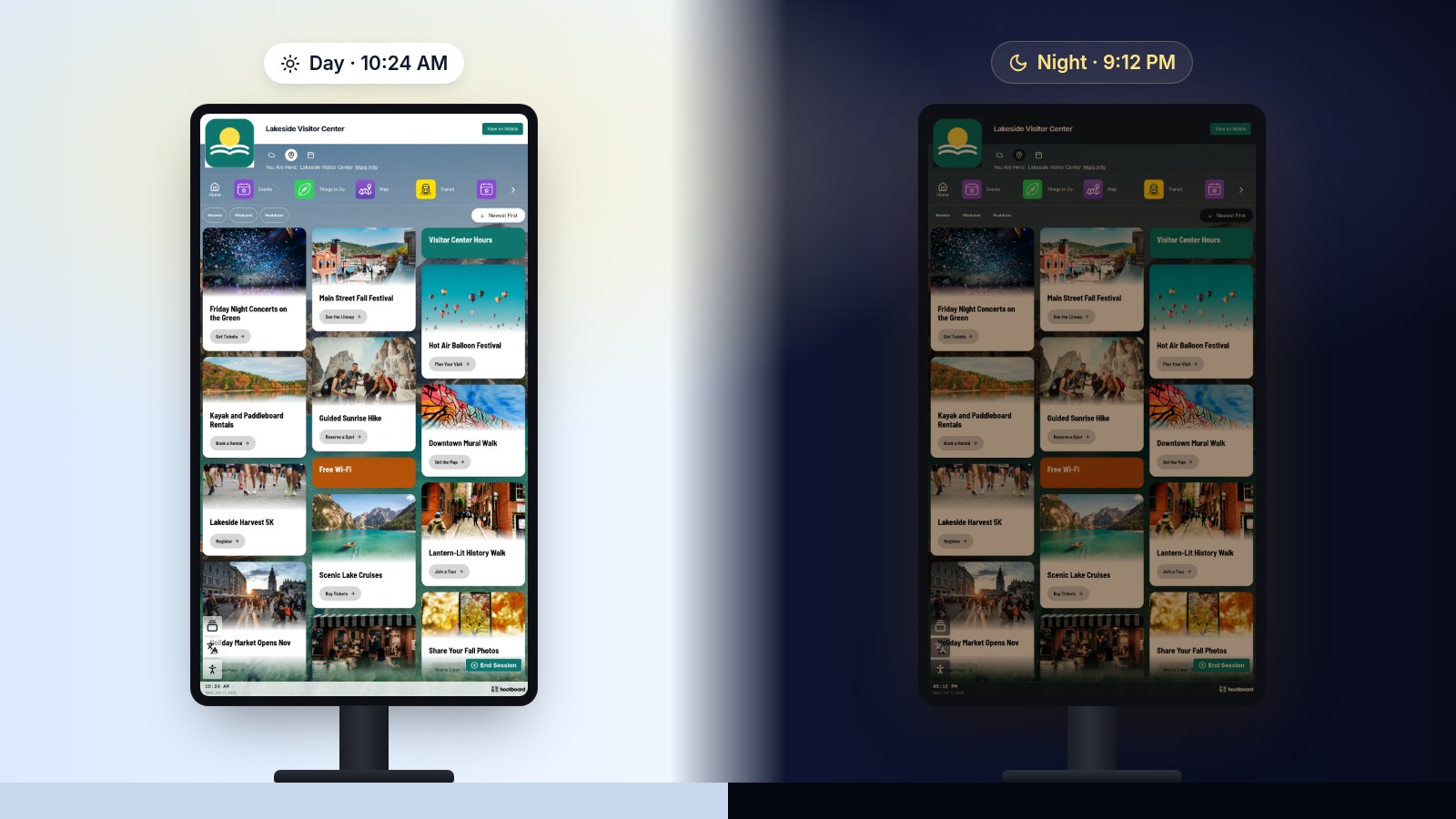
HootBoard kiosks can now dim, warm their colors and switch to a dark look after sunset, all on a schedule you set once. It's included on Reach plans and up.
A bright screen is perfect at noon. At 9 PM on a quiet street, that same screen can feel like a floodlight. People squint as they walk up, white backgrounds glare, and light spills across the sidewalk.
So this week we shipped Night mode for HootBoard kiosks. Turn it on, and each screen gently dims and warms its colors after dark, then comes back to full brightness in the morning. No site visit, no remote session, and nothing for your team to remember.
What night mode does
Three things, working together:
- Dims the whole screen. You choose how bright the screen is at night, from 30% to 100% of its daytime brightness. We start you at 60%. Because night mode works at the display itself, everything dims together: hoots, photos, videos, maps and websites.
- Warms the colors. A gentle amber tint takes the edge off white backgrounds and cuts blue light, the harshest part of a bright screen at night. Pick No tint, Slightly warm or Warm.
- Switches to dark colors, if you like. Menus, lists and backgrounds turn dark during night hours. Your hoots, photos and videos keep their own colors, and websites that offer a dark version will show it.

It follows the sun
Choose Sunset to sunrise and each kiosk works out sunset and sunrise for its own location, every single day. Summer evenings stay bright longer, winter evenings dim earlier, and you never have to touch the setting again.
Prefer a fixed schedule? Choose Set hours and pick when night mode starts and ends, in the screen's local time.
Either way, the change fades in over about 20 seconds, so nobody sees the screen suddenly snap darker.
Bright enough when someone walks up
A dim screen is lovely to walk past, but it should still be easy to read up close. So when someone taps the kiosk, it brightens partway back toward daytime (from 60% to 80% at the default setting). The warm tint and dark colors stay, so it still feels like evening. When they're done, the screen eases back down.

It steps aside when it should
- Emergency alerts always show at full daytime brightness.
- The on-screen Admin Panel pauses night mode while it's open, so your team never adjusts a display through a tint.
- Power schedules still win. If a screen is set to switch off overnight, it switches off.
How to turn it on
- In your HootBoard dashboard, open Screens, then Your Screen IDs.
- Click Settings next to the kiosk you want to change.
- Open the Device tab and scroll to Night mode.
- Choose Sunset to sunrise or Set hours.
- Adjust Night brightness and Color warmth if you like, and switch on Use dark colors at night for the full dark look.
- Click Save. The kiosk picks up the change on its next refresh.

Night mode is set per screen, so a lobby screen and an outdoor kiosk on the same board can each have exactly the right amount of glow. Our tip: start with the defaults (60%, Slightly warm), then stop by one evening and see how it feels in person.

Which plans include night mode
Night mode is included on the Reach plan and every plan above it, so Reach, Engage and Activate boards can turn it on today.
On another plan and want calmer screens after dark? Write to us at support@hootboard.com and we'll help you find the right fit.
The bottom line
Your kiosk works hard all day. Now it knows how to wind down at night: softer light for the people walking by, a warmer glow for the street, and full brightness the moment the sun comes up. Set it once, and it takes care of itself.