If you’ve ever shipped a dozen Android screens to a hotel chain or a corporate office and spent the next two weeks on the phone trying to troubleshoot why half of them won’t stay in kiosk mode, you know the real cost of unmanaged hardware. It isn’t the device itself. It’s the 45-minute support call with a frustrated front-desk manager who is trying to describe what’s on the screen while guests are actively waiting to check in.
We built the HootBoard Device Manager to make that call completely unnecessary.
The Problem Nobody Talks About
Every digital signage and interactive kiosk platform will happily sell you the beautiful software that runs on the screen. What they often fail to mention is that getting the software onto the screen — and keeping it there, updated, locked down, and easily recoverable when things go wrong — is an entirely separate operational nightmare.
The typical deployment looks something like this: unbox a device, connect it to Wi-Fi, download the app from an emailed link, install it, set it as the default home launcher, dig into Android settings to disable specific features, install a separate third-party lockdown app, and then cross your fingers hoping nobody accidentally pulls up YouTube by swiping down the notification shade.
Multiply that by 50 devices across 12 different locations. That’s not a seamless deployment — that’s a part-time job.
Enter HootBoard Device Manager
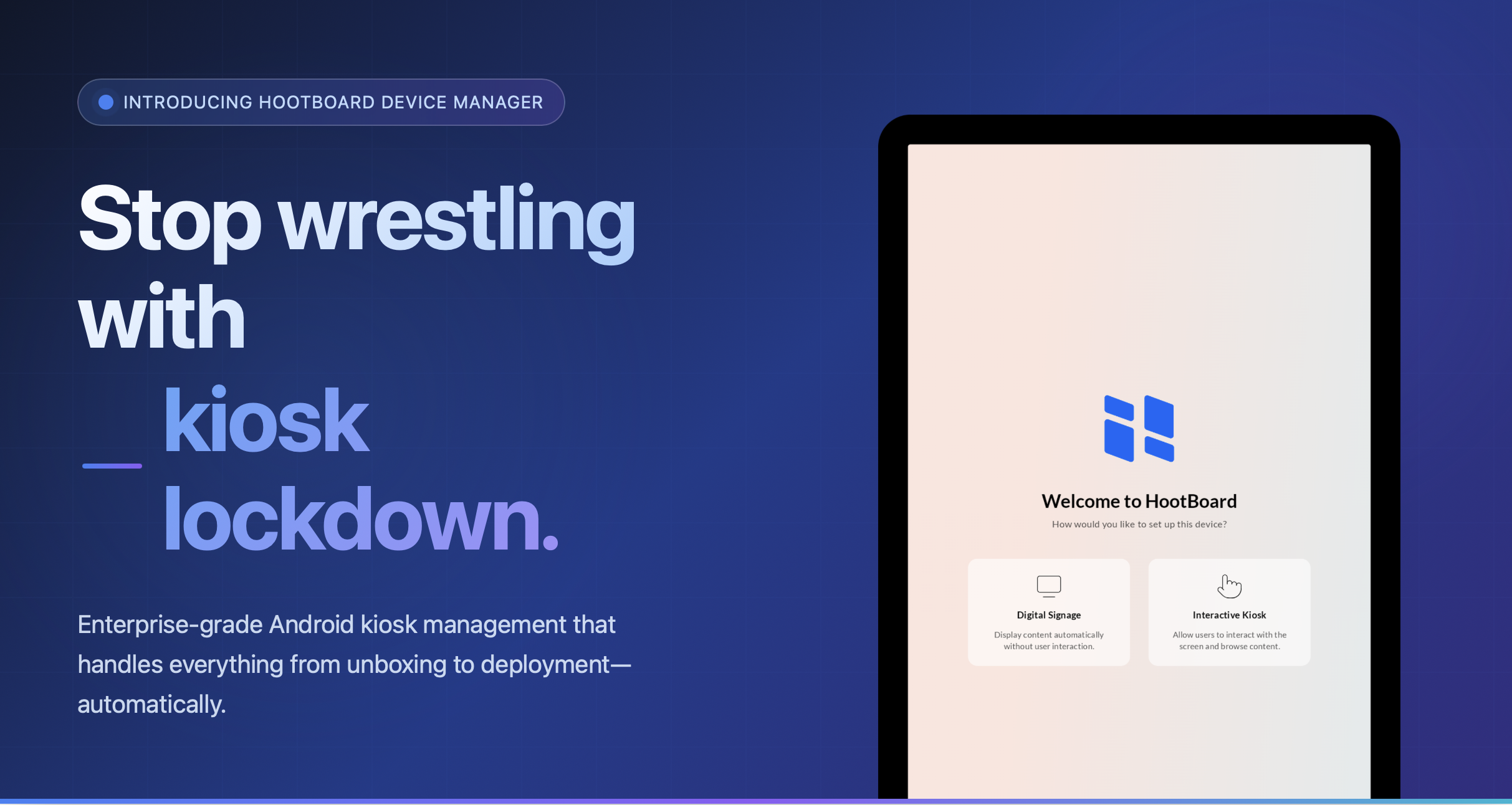
HootBoard’s Device Manager is a powerful, enterprise-grade Mobile Device Management (MDM) layer that lives directly on your Android device. It handles everything between “unbox the device” and “the kiosk is running flawlessly, and you never have to think about it again.”
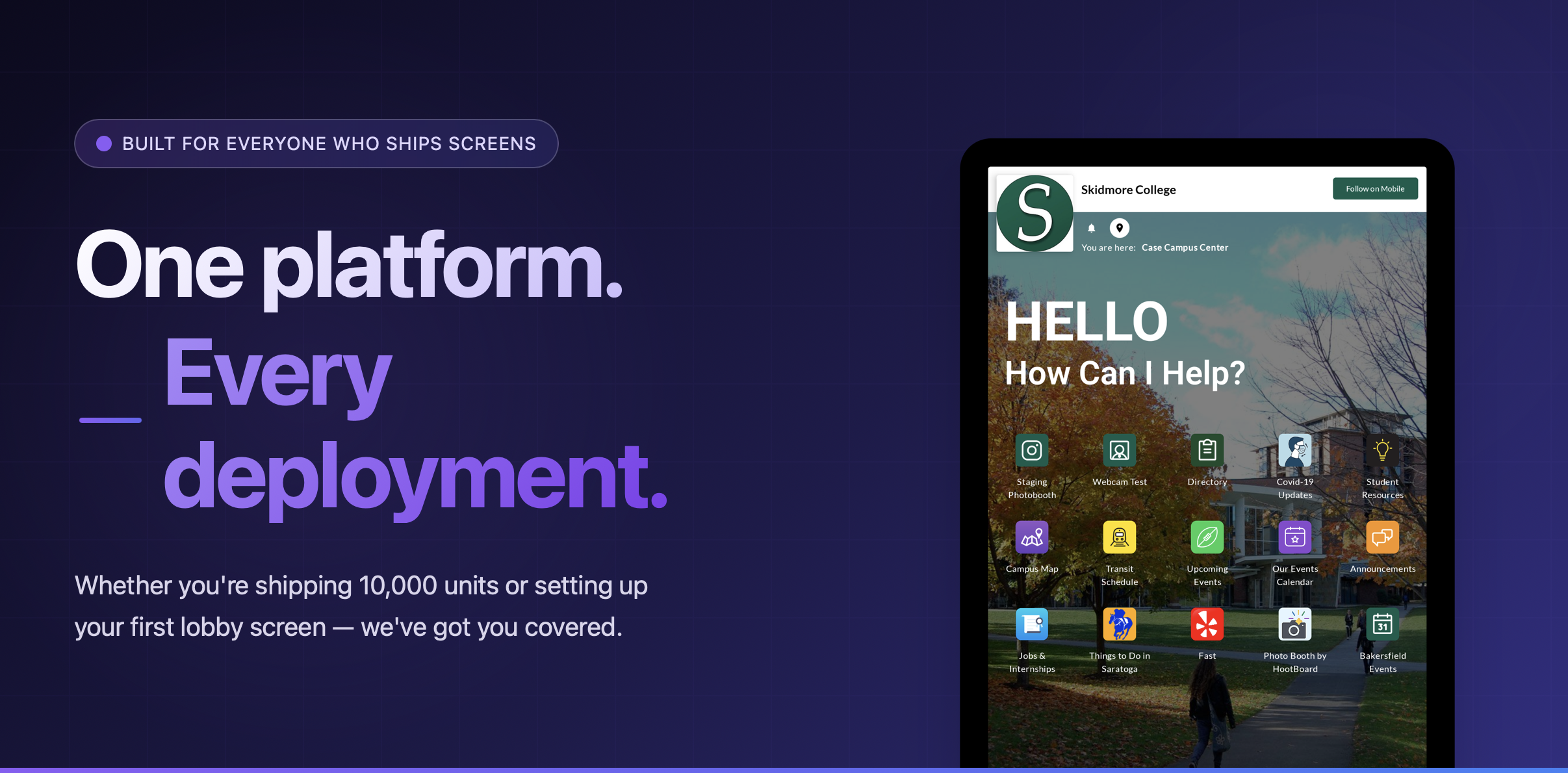
Say goodbye to manual configurations and hello to zero-touch provisioning. Here’s the short version: factory-reset a device, scan one QR code, pick your device type, and walk away. The device completely sets itself up, downloads the kiosk software, locks itself down, and starts running your content.
Who is Device Manager For?
Device Manager is built to scale from single-location setups to global hardware deployments. Whether you’re managing one device or ten thousand, it eliminates the technical overhead:
Hardware Vendors & Integrators
If you supply digital signage displays or interactive kiosks to clients, Device Manager allows you to pre-configure and ship ready-to-use hardware. You can maintain complete control over the devices post-deployment, silently push software updates, and guarantee a premium, locked-down experience that reflects well on your brand—all without sending a technician on-site.
Everyday Business Owners:
If you just bought an off-the-shelf Android touch screen for your lobby, hotel, or retail store, you don’t need an IT degree to set it up. Device Manager turns your standard tablet or display into a secure, dedicated kiosk in minutes. No more worrying about customers exiting your app, messing with settings, or browsing the web when they shouldn’t be.
Setting Up a Device: 90 Seconds, Zero Typing
The days of manual app installs and complicated “set as home launcher” dances are officially over. With our streamlined enrollment process, you can transform a consumer device into a dedicated, locked-down kiosk in under 90 seconds.
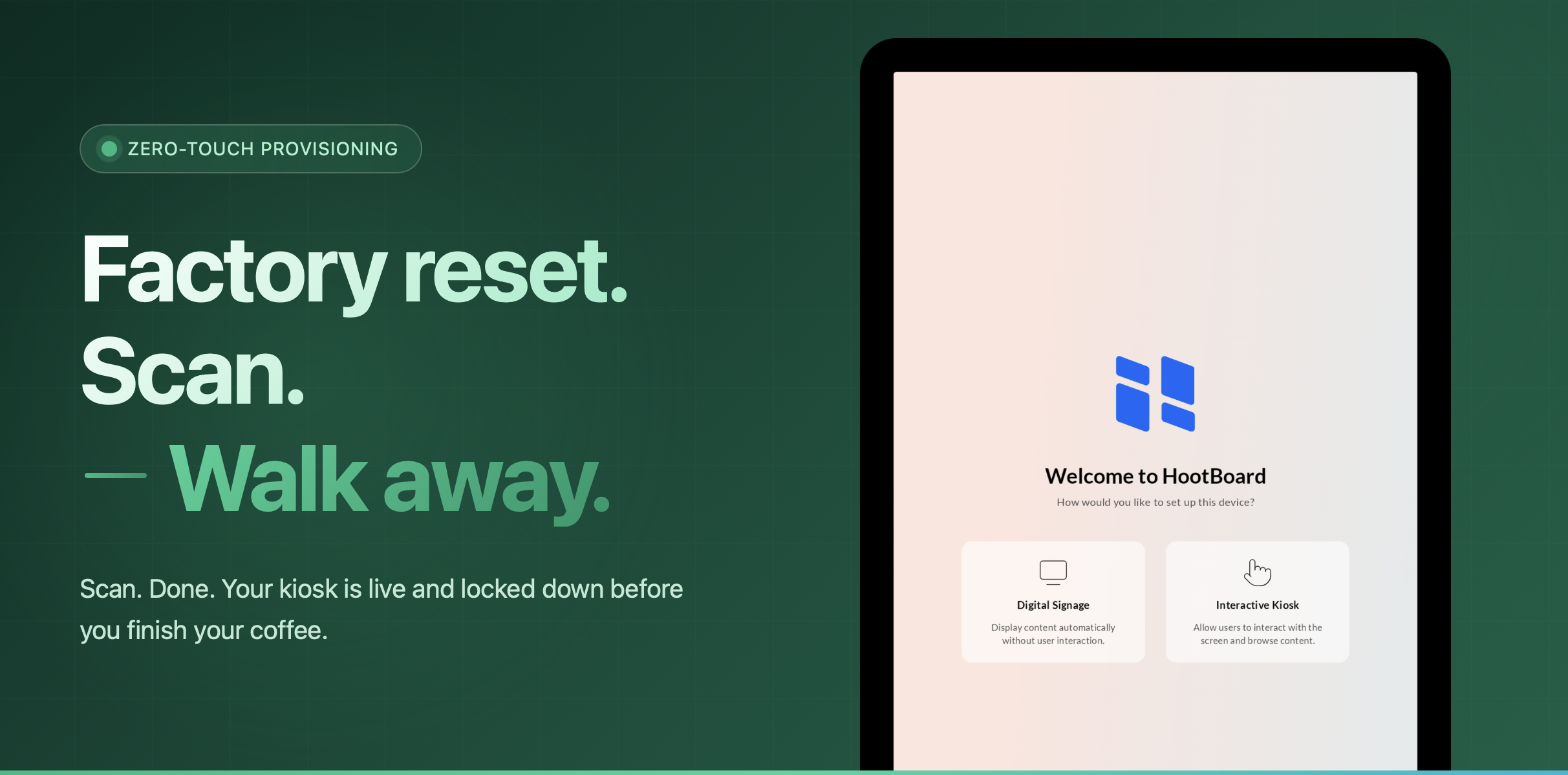
1. Start with a fresh device. Factory reset an Android 7+ device (1280×800, 2GB+ RAM) to the initial “Hi there” welcome screen.
2. Open the QR scanner. Tap the blank area of the welcome screen six times quickly to seamlessly launch Android’s built-in hidden QR scanner.
3. Scan the enrollment QR code. Fetch your setup QR code from [downloads.hootboard.com](<https://downloads.hootboard.com/>) by selecting the Android option. Point your camera at it, and the device will automatically download the management app.
4. Connect to Wi-Fi & pick your device type. Connect to your local network, select either Digital Signage or Interactive Kiosk, and walk away. The device will automatically provision itself, enforce security policies, and launch the kiosk app.
For full, step-by-step guidance on enrollment, check out our [detailed setup instructions](<https://hootboard.zendesk.com/hc/en-us/articles/49232839510292-How-to-Set-Up-HootBoard-Kiosk-Mode-on-Your-Android-Device>).
Updates That Install Themselves
Keeping digital signage software up to date used to mean emailing APK files to site managers and praying they followed the instructions correctly. Device Manager replaces that outdated process entirely.
When a new version of your kiosk app is available, every device in your fleet picks it up automatically. The download happens quietly in the background, utilizing advanced caching without slowing down the kiosk’s primary internet connection. Once the download finishes, the device verifies the file hasn’t been corrupted, then installs the update silently — no disruptive popups, no annoying progress bars, and absolutely no interruption to whatever beautiful content the kiosk is displaying.
You can also leverage two distinct update channels — stable and beta. Push a new version to your beta channel first, let a few test devices run it for a day or two to monitor performance, and then promote it to stable when you’re completely confident.
Unbreakable Enterprise-Grade Lockdown
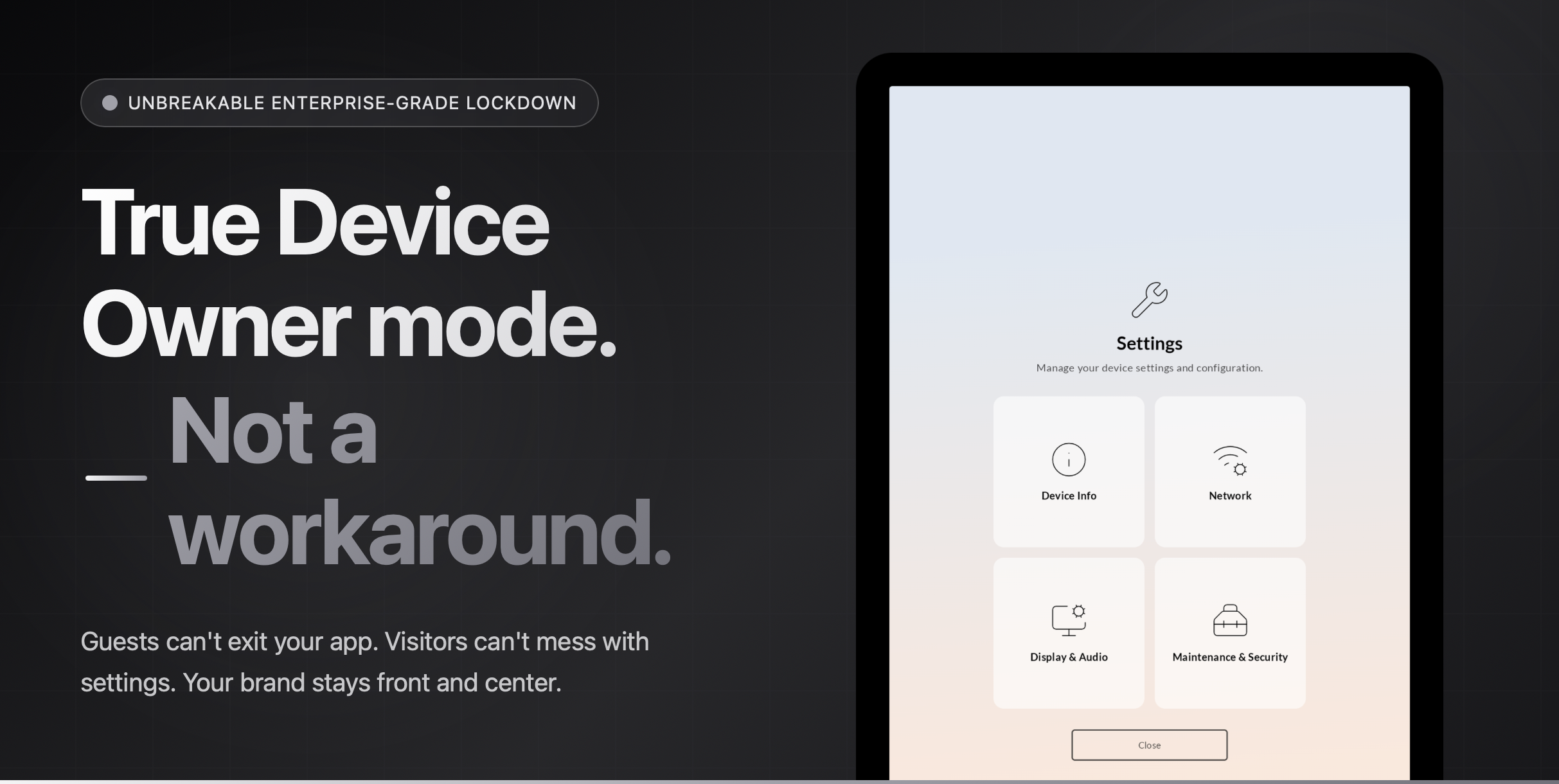
Unlike standard, flimsy kiosk apps that rely on simple workarounds, Device Manager leverages true Android enterprise lockdown (Device Owner mode). It actively disables the home screen, safe mode, USB data transfers, and system UI notifications. If the kiosk application ever crashes, the system triggers an automatic, immediate relaunch before a visitor even notices.
Ready to elevate your deployment? Get the QR code for provisioning at [downloads.hootboard.com](<https://downloads.hootboard.com/>).
Curious about upgrading your existing fleet or exploring our digital signage solutions? [Schedule a demo](<https://about.hootboard.com/schedule-demo/>) today — we’ll walk you through it in 15 minutes.